
Troubleshooting
Template Rejected by Meta
Understand why Meta rejected your WhatsApp Template and how to fix and resubmit it for approval.
Reviewed by Mahmoud Ilyan · updated
What it is
Meta reviews all WhatsApp Templates before they can be used to ensure compliance with WhatsApp Business Policy.
Templates can be rejected for policy violations, unclear content, misleading information, or prohibited categories.
Rejected Templates cannot be sent until you fix the issues and resubmit for review.
When to use it
- When a Template submission is rejected and you need to understand the reason.
- When you want to learn how to avoid rejections in future Template submissions.
- When you need to resubmit a Template after fixing policy violations.
Step by step
1. Check the Rejection Reason
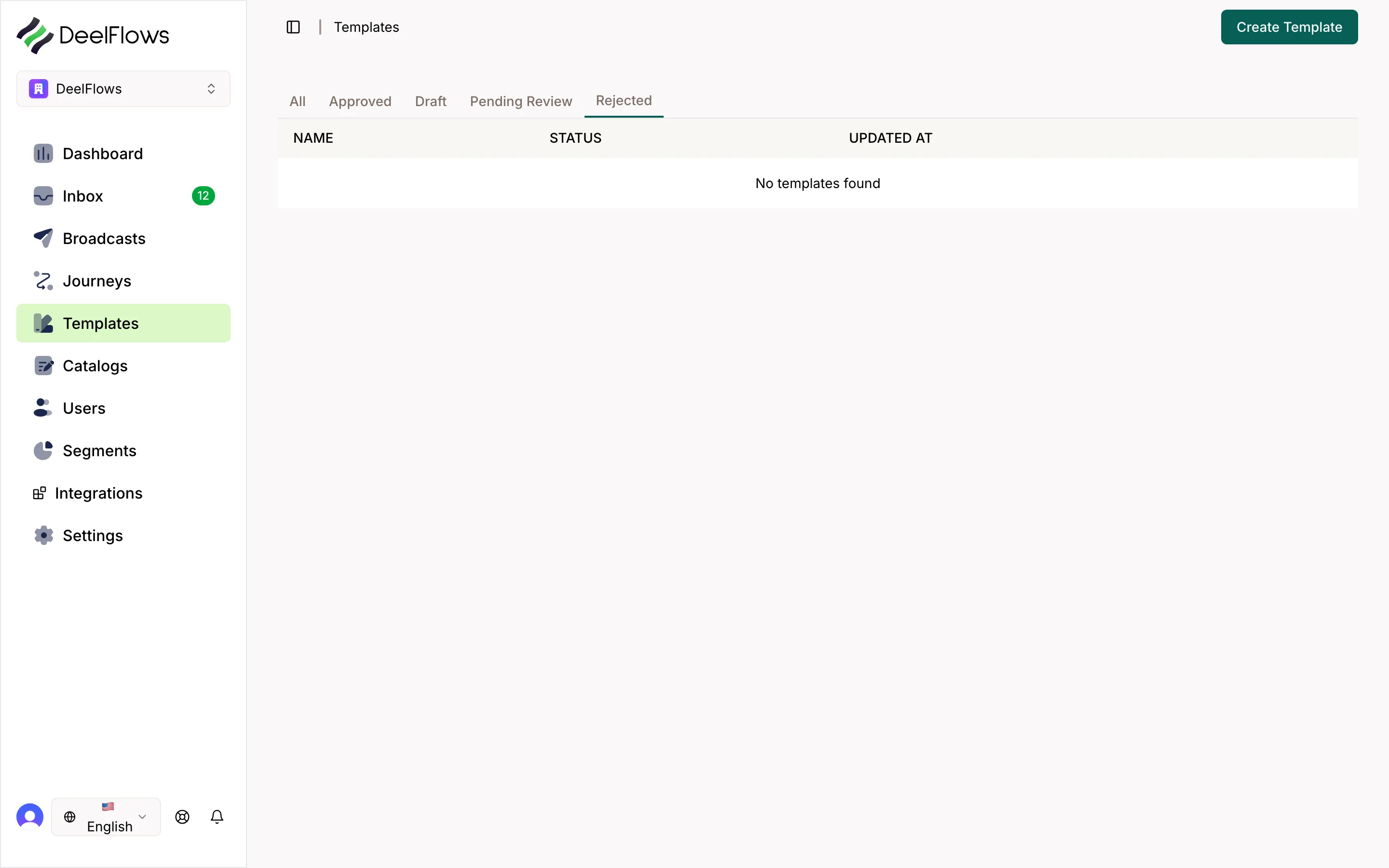
Go to Settings → Templates in DeelFlows and find the rejected Template.
Click on the Template to view the rejection reason provided by Meta.
Common rejection reasons include: misleading content, prohibited content (loans, alcohol, gambling), abusive language, incorrect category selection, or missing opt-in context.
Read the full rejection reason carefully—Meta usually provides specific guidance on what needs fixing.
2. Fix Policy Violations
Update your Template content to address the rejection reason.
Avoid promotional language in Utility or Authentication Templates—use the Marketing category instead.
Remove any prohibited content like financial services, adult content, or misleading claims.
Ensure variable placeholders are clearly described in your submission notes.
If your Template references an opt-in, include context about where and how users opted in.
3. Adjust Template Category
If the rejection mentions category mismatch, choose the correct category: Marketing, Utility, or Authentication.
Marketing Templates are for promotions, offers, and product recommendations.
Utility Templates are for account updates, order confirmations, and transactional notifications.
Authentication Templates are for one-time passwords and login verification.
4. Resubmit for Review
After making changes, click Resubmit for Review in the Template editor.
Include a clear submission note explaining the changes you made and why the Template complies with policy.
Meta typically reviews resubmissions within 24 hours, though it can take longer during peak times.
You'll receive a notification when the Template is approved or if additional changes are needed.
5. Prevent Future Rejections
Review WhatsApp Business Policy before creating new Templates: https://www.whatsapp.com/legal/business-policy
Use clear, honest language and avoid exaggerated claims or clickbait.
Match your Template category to the actual use case.
If you're unsure, submit a test version first or contact DeelFlows support for review.
FAQ & gotchas
How long does Meta take to review a resubmitted Template?
Most resubmissions are reviewed within 24 hours. In some cases, it may take up to 48 hours. You'll receive a notification when the review is complete.
Can I appeal a Template rejection?
Meta does not provide a formal appeal process. If you believe your Template was rejected in error, fix any potential issues and resubmit with detailed notes explaining compliance.
What if my Template is rejected multiple times?
Multiple rejections may indicate a fundamental policy issue. Review WhatsApp Business Policy carefully or contact DeelFlows support for guidance on rewriting the Template.
Can I use a rejected Template while waiting for resubmission review?
No. Rejected Templates cannot be used in Broadcasts or Journeys until they're approved by Meta.
Why was my Template rejected for 'missing opt-in context'?
Meta requires that Templates sent for marketing purposes have clear opt-in consent from recipients. Include a note in your submission explaining how users opted in (e.g., 'Users opted in via website form').
Continue learning
Related articles
Media Upload and Format Errors
Fix common image, video, and PDF upload errors related to file size, format, and encoding for Templates and Inbox.
→WhatsApp Connection and Verification Issues
Troubleshoot WhatsApp connection problems, Business verification issues, and reconnection steps.
→Can't find what you're looking for?
Contact Support