
Use Cases
Recover Abandoned Carts
Connect Shopify or WooCommerce, create a Template with Events variables (checkout URL), then activate the Abandoned Cart Journey preset (Event Entry → Delay → Split → WhatsApp).
Reviewed by Mahmoud Ilyan · updated
What it is
Cart recovery in DeelFlows is a Journey, not a separate product feature.
The Abandoned Cart preset builds: Event Entry (checkout started) → Delay → Split (order created since entry?) → Yes: Exit · No: WhatsApp with your Template → Exit.
Checkout URL and similar fields belong under Add Variable → Events in the Template, then bind them on the Journey WhatsApp node. User attributes alone cannot supply the live checkout link from the trigger event.
Requires Shopify or WooCommerce connected so checkout and order events reach DeelFlows.
When to use it
- You run Shopify or WooCommerce and lose sales at checkout
- You want a WhatsApp reminder only if they still have not ordered after a delay
- You need the real checkout URL from the store event in the message
Step by step
1. Connect your store
Go to Settings → Integrations and connect Shopify or WooCommerce.
Finish OAuth / plugin setup so checkout-started and order-created events sync.
Confirm events appear for a test Contact before building the Journey.
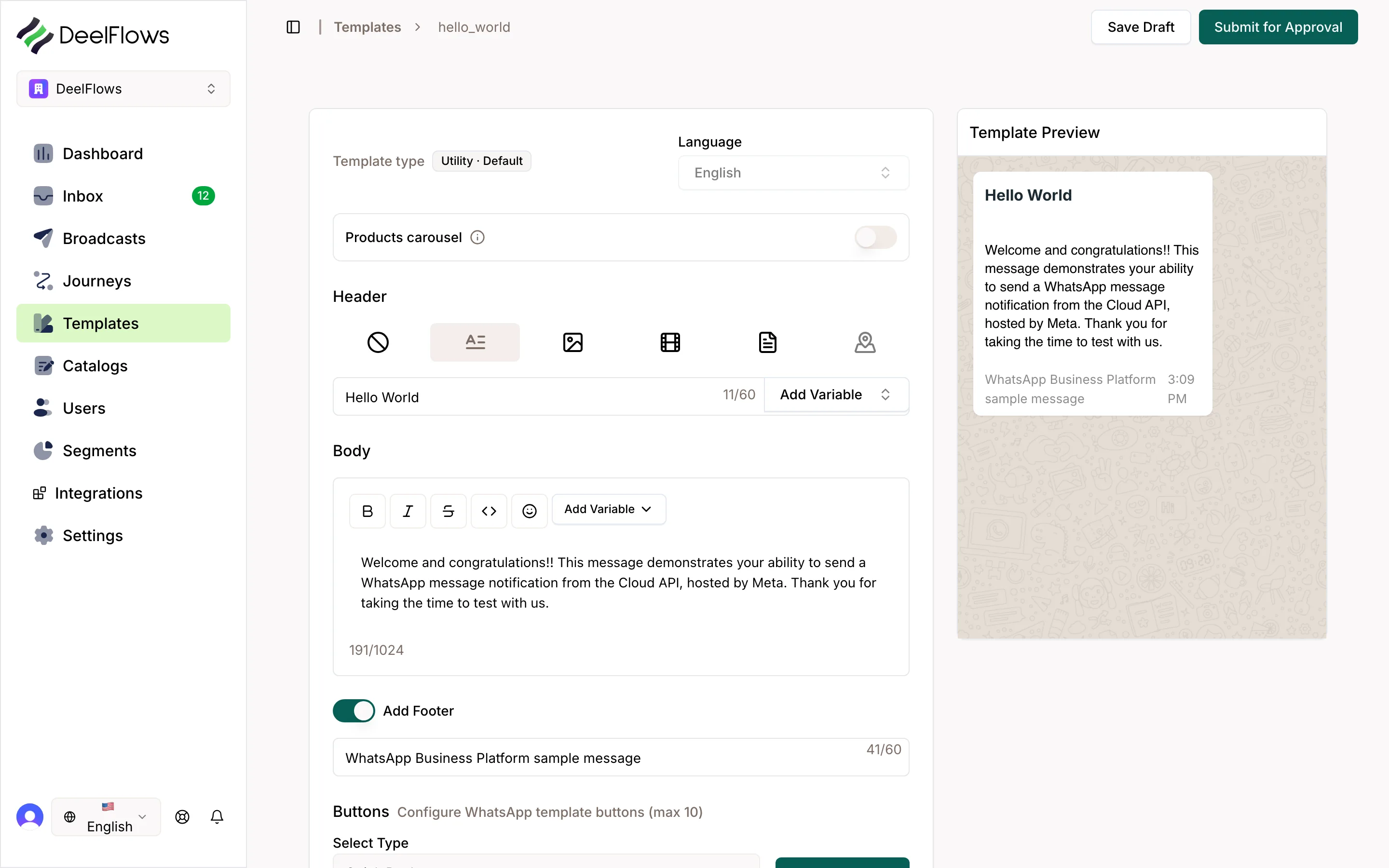
2. Create a cart Template with Events variables
Go to Templates → Create Template (usually Marketing; follow Meta policy for your market).
Write the body. Use User attributes for name ({{firstName}}) and Add Variable → Events for checkout URL ({{event_checkoutUrl}} or the field your store exposes).
Do not put Events variables in a Broadcast-only Template — they need Event Entry on a Journey.
Set Example values for Meta review, submit, and wait until Approved.
3. Create from the Abandoned Cart preset
Go to Journeys → Create Journey → Abandoned Cart Recovery.
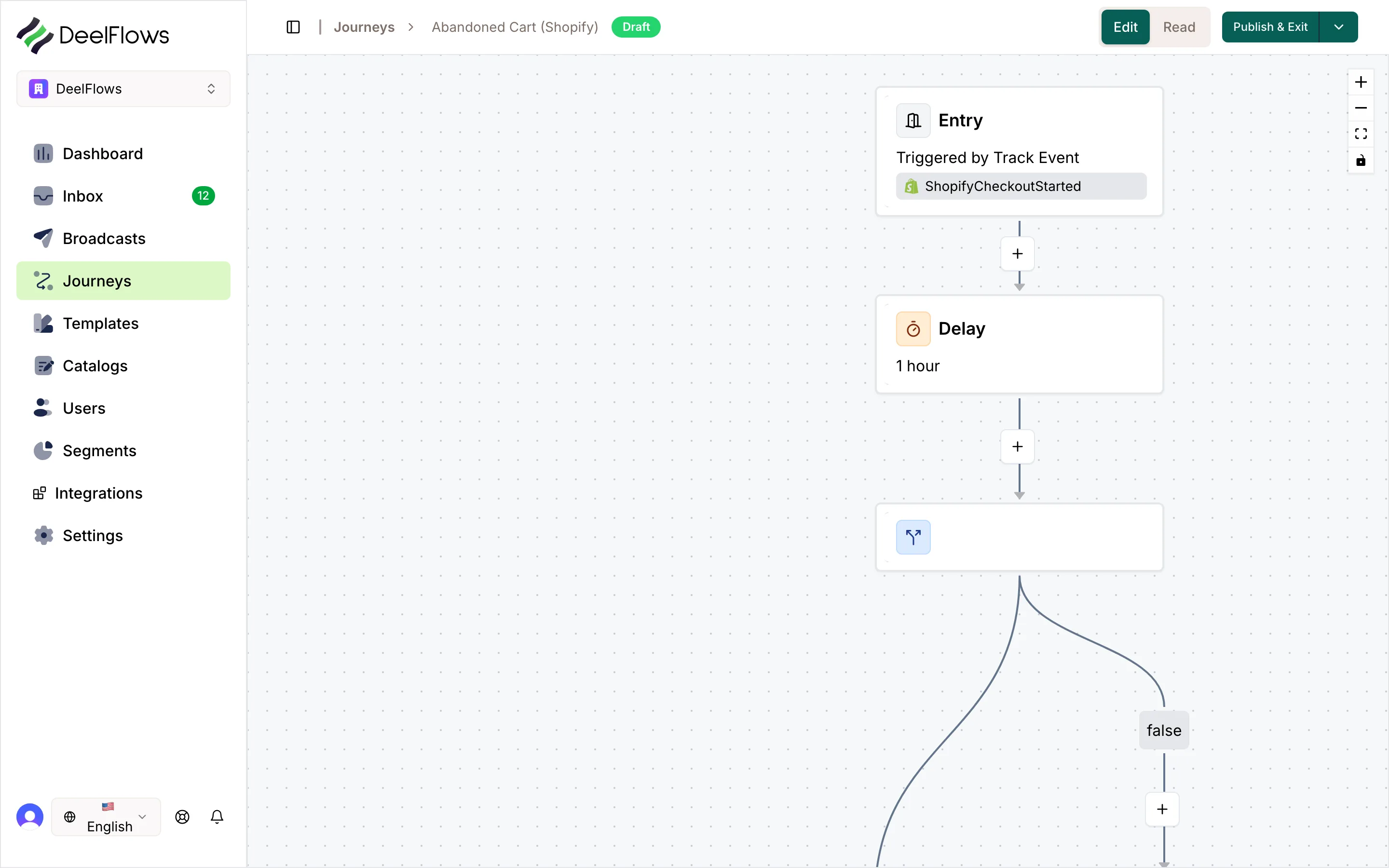
The canvas already has Event Entry (CheckoutStarted for your store), Delay, Split on OrderCreated with “since entry”, WhatsApp, and Exit.
Entry frequency is Recurring so the same Contact can abandon more than once.
4. Configure Delay, Split, and WhatsApp
Open Delay and set how long to wait before checking for an order (for example 1 hour).
Open Split — keep OrderCreated with Only count events after entry so an older order does not count as “already bought.”
Open the WhatsApp node, pick your approved Template, and confirm Events placeholders are Event Field–bound to the checkout URL path (or Manual override if needed).
Do not replace Delay + Split with Wait For — Wait For is incompatible with Event Entry.
5. Activate and monitor
Activate the Journey. New checkout-started events enter; if they order during the delay, they take the Yes path and exit without the reminder.
Open the Journey to review runs and WhatsApp delivery. Adjust delay or copy based on recovery.
FAQ & gotchas
How does DeelFlows decide a cart is abandoned?
There is no separate “abandoned” flag. The preset waits after CheckoutStarted, then splits: if OrderCreated did not happen since entry, it sends WhatsApp. That Delay + Split pattern is the abandonment check.
Will they get the message if they order before the Delay ends?
No. After the Delay, the Split Yes path (order since entry) goes to Exit without sending.
Why use Events variables instead of {{checkout_link}} as a user property?
The checkout URL lives on the store event, not as a lasting Contact field. Events variables + WhatsApp node binding pull that payload. User attributes are for Contact data like name.
Do Contacts need Opt-in for cart recovery?
If the Template is Marketing, Meta/WhatsApp rules and DeelFlows Opt-in apply. Prefer Utility only when the message is truly transactional per Meta policy. When unsure, get Opt-in at checkout.
Continue learning
Can't find what you're looking for?
Contact Support