
Use Cases
Send Your First Broadcast
Complete recipe to send your first bulk WhatsApp campaign. Learn how to get Contacts opted in, create an approved Template, and launch a Broadcast.
Reviewed by Mahmoud Ilyan · updated
 0:56
0:56Video needed
Watch video guide →
What it is
A Broadcast is a one-time message sent to multiple Contacts at once.
Before you can send a Broadcast, you need three things: opted-in Contacts, an approved Template, and a target Segment.
This guide walks you through the complete process from start to finish.
You will learn how to get Opt-in permission, submit a Template for approval, and launch your first campaign.
When to use it
- When you are new to DeelFlows and want to send your first campaign
- When you need to announce a promotion to customers
- When you want to share news or updates with your Contact list
- When you need to re-engage inactive customers
Step by step
1. Get Contacts to Opt-in
You need Contacts who have given permission to receive marketing messages.
The easiest way is to create a simple Journey: Go to Campaigns → Journeys → Create Journey.
Set the entry trigger to 'Contact sends any message'.
Add a Send Message step with a Template that has an Opt-in button.
When Contacts click the button, they are marked as opted in.
Activate the Journey and wait for Contacts to message you.
2. Create and submit a Template
Go to Settings → Templates.
Click Create Template.
Write your message content. Keep it clear and include your business name.
Add variables if you want to personalize with Contact names or other data.
Click Submit for Approval.
Meta typically reviews Templates within 24-48 hours.
You will receive an email when your Template is approved.
3. Create a Segment
While waiting for Template approval, create a Segment of opted-in Contacts.
Go to Contacts → Segments → Create Segment.
Choose Dynamic Segment.
Add a rule: 'Opt-in status equals opted in'.
Click Preview to see matching Contacts.
Click Save.
4. Wait for Template approval
Check your email for the approval notification from Meta.
Or go to Settings → Templates and look for a green 'Approved' badge.
If your Template is rejected, read the rejection reason and make changes.
Common rejection reasons: missing business name, promotional language that is too aggressive, or unclear opt-out instructions.
Submit again after making changes.
5. Launch your Broadcast
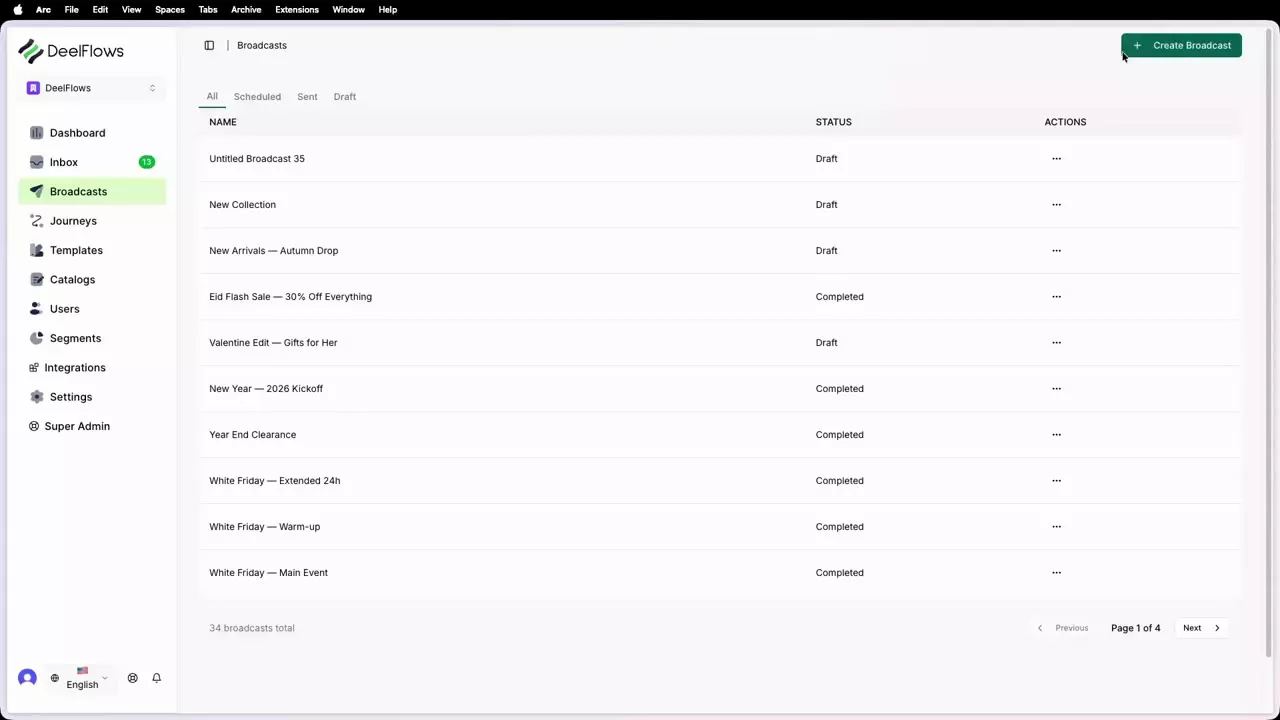
Once your Template is approved and you have opted-in Contacts, go to Campaigns → Broadcasts.
Click Create Broadcast.
Step 1 - Target: Select your opted-in Segment.
Step 2 - Design: Choose your approved Template and fill in variables.
Step 3 - Schedule: Choose Send Now or schedule for later.
Step 4 - Review: Check everything looks correct.
Click Launch Broadcast.
6. Monitor results
After sending, go to Campaigns → Broadcasts and click your campaign.
You will see delivery stats: sent, delivered, read, and clicked.
Check the Inbox for replies from Contacts.
Use this data to improve your next Broadcast.
FAQ & gotchas
How long does Template approval take?
Meta usually reviews Templates within 24-48 hours. During busy periods, it can take up to 72 hours. You will receive an email when your Template is approved or rejected.
What if I do not have any Contacts yet?
You can import Contacts from a CSV file at Contacts → Import. However, imported Contacts start without Opt-in status. You will need to send them a message with an Opt-in button first, using a Journey or one-on-one Conversation.
Can I send a Broadcast to Contacts who have not opted in?
No. WhatsApp requires explicit permission for marketing messages. DeelFlows only allows Broadcasts to opted-in Contacts to keep your account in good standing.
How do I know if a Contact has opted in?
Open their profile in the Contacts page. You will see a green Opt-in badge at the top if they have opted in. You can also create a Segment with the rule 'Opt-in status equals opted in' to see all opted-in Contacts.
Continue learning
Related articles
Can't find what you're looking for?
Contact Support