
WhatsApp Basics
Understanding the 24-Hour Session Window
Learn how WhatsApp's 24-hour session window affects when and how you can message Contacts.
Reviewed by Mahmoud Ilyan · updated
What it is
The session window is WhatsApp's rule that lets you send free-form messages for 24 hours after a Contact messages you or clicks a button in one of your messages.
During an open session window, you can send any message you want without using a Template. You can have back-and-forth conversations just like texting.
Once the session window closes, you can only send messages using pre-approved Templates. This prevents businesses from spamming Contacts who haven't engaged recently.
When to use it
- You're trying to understand why you can't send a message to a Contact
- You want to maximize free-form messaging and minimize Template usage
- You're planning when to send Broadcasts or Journey messages
- You need to respond quickly to customer questions before the window closes
- You're troubleshooting why a message failed to send
Step by step
1. How the session window opens
A session window opens when a Contact sends you a message on WhatsApp. The moment they message you, a 24-hour timer starts.
The window also opens when a Contact clicks a call-to-action button in one of your Templates. For example, if they click View Products or Get Support.
You can send unlimited free-form messages during the open window. No need for Templates.
2. What you can do during an open window
While the session window is open, you can send text messages, images, files, and links without any restrictions.
You can have natural conversations with Contacts. Ask questions, provide support, send product links, or close a sale.
This is the best time to engage with Contacts. Respond quickly to make the most of the 24 hours.
3. What happens when the window closes
Exactly 24 hours after the Contact's last message or button click, the session window closes.
Once closed, you can only message the Contact using an approved Template. No more free-form messages.
If you try to send a free-form message outside the window, WhatsApp will reject it. DeelFlows will show you an error.
4. How to reopen a closed window
The only way to reopen a session window is for the Contact to message you again or click a button in one of your Templates.
You can send a Template with a call-to-action button to encourage them to click and reopen the window.
Once they click, the 24-hour timer resets and you can send free-form messages again.
5. Using Templates outside the window
Templates let you message Contacts even when the session window is closed. They're your only option for initiating a conversation.
Templates must be pre-approved by Meta. They're designed for specific use cases like order updates, promotions, or appointment reminders.
Go to Templates in DeelFlows to create and submit Templates for approval. Approval usually takes 24 hours.
6. Checking session status in DeelFlows
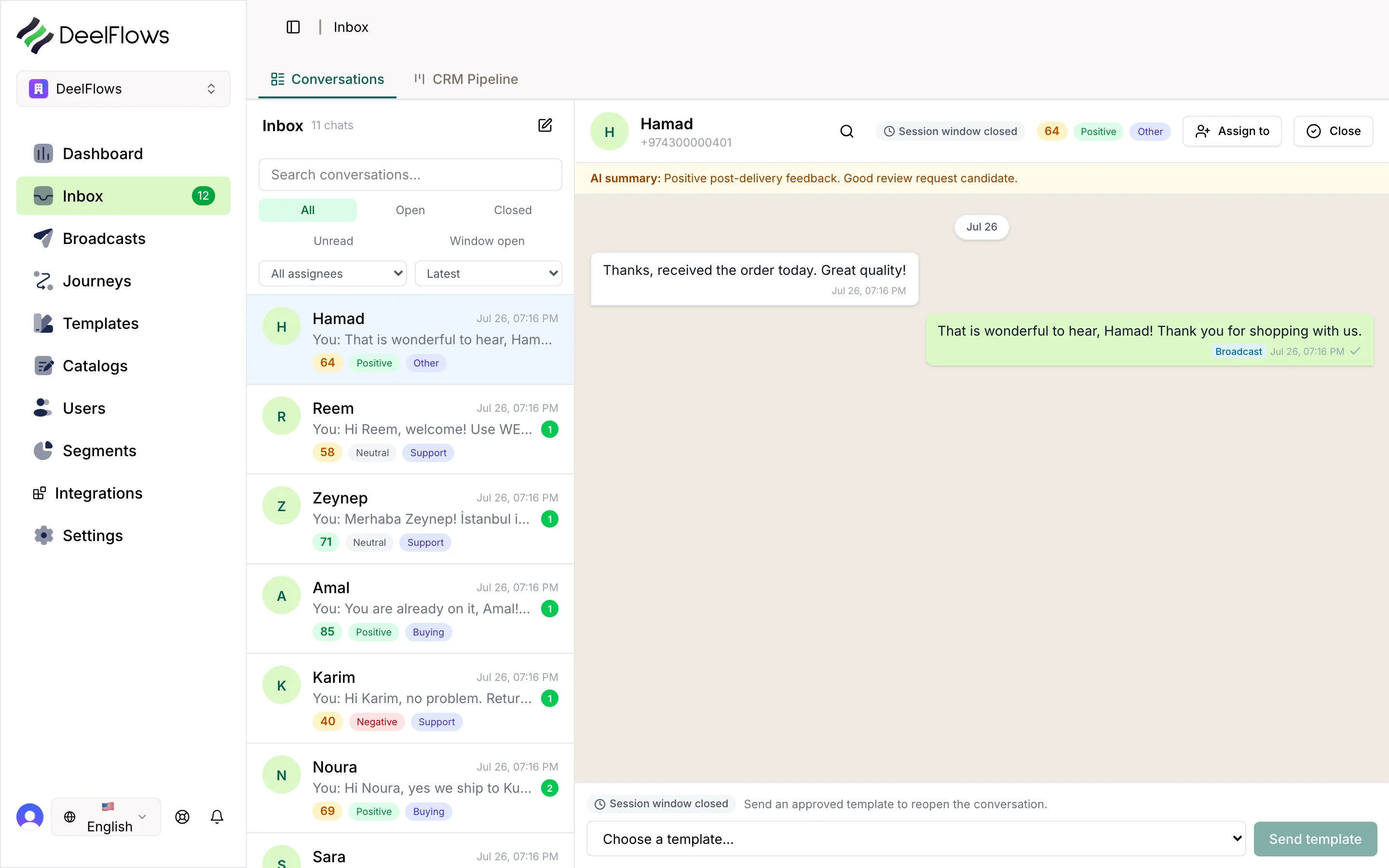
In the Inbox, DeelFlows shows a green badge if a Contact's session window is open. You'll see how much time is left.
If the window is closed, you'll see a gray badge that says Session Closed. DeelFlows will prompt you to choose a Template.
You can also check session status in the Contact profile under the Activity tab.
FAQ & gotchas
Can I extend the session window beyond 24 hours?
No. The 24-hour limit is set by WhatsApp and applies to all businesses. It's designed to protect users from spam. The only way to get more time is if the Contact messages you again or clicks a button.
What if I send a message at hour 23 and the Contact replies at hour 25?
Your message at hour 23 will go through because the window was still open. When the Contact replies at hour 25, a new 24-hour window starts. You can now send free-form messages for another 24 hours.
Do Broadcasts respect the session window?
Yes. When you send a Broadcast, DeelFlows automatically uses a Template because most Contacts won't have an open session window. You can't send a free-form Broadcast to Contacts with closed windows.
What's the difference between a session window and opt-in status?
Session window controls whether you can send free-form messages. Opt-in status controls whether you can send Marketing messages at all. A Contact needs to be opted in AND have an open session to receive free-form marketing messages.
Continue learning
Related articles
Can't find what you're looking for?
Contact Support