
WhatsApp Basics
Creating and Managing WhatsApp Templates
Create Meta-approved Templates, add User attributes, Global shortcodes, or Events variables, and use them in Broadcasts and Journeys.
Reviewed by Mahmoud Ilyan · updated
 1:35
1:35Video needed
Watch video guide →
What it is
A Template is a pre-approved WhatsApp message format. You write it in DeelFlows, submit it to Meta for review, then use it in Broadcasts, Journeys, and the Inbox when the session window is closed.
Templates are Marketing (promotions) or Utility (order updates and account alerts). Marketing needs Opt-in. Utility is for transactional updates.
In the editor, Add Variable offers three kinds of placeholders: User attributes (Contact data), Global shortcodes (Workspace-wide constants), and Events (data from a journey trigger event). They look similar in the body as {{name}} or {{event_checkoutUrl}}, but they resolve differently at send time.
When to use it
- You need to message Contacts outside the 24-hour session window
- You are building a Broadcast or Journey that sends WhatsApp
- You want personalized copy using Contact data or store checkout URLs
- You need a reusable format for order updates or promotions
Step by step
1. Create a Template
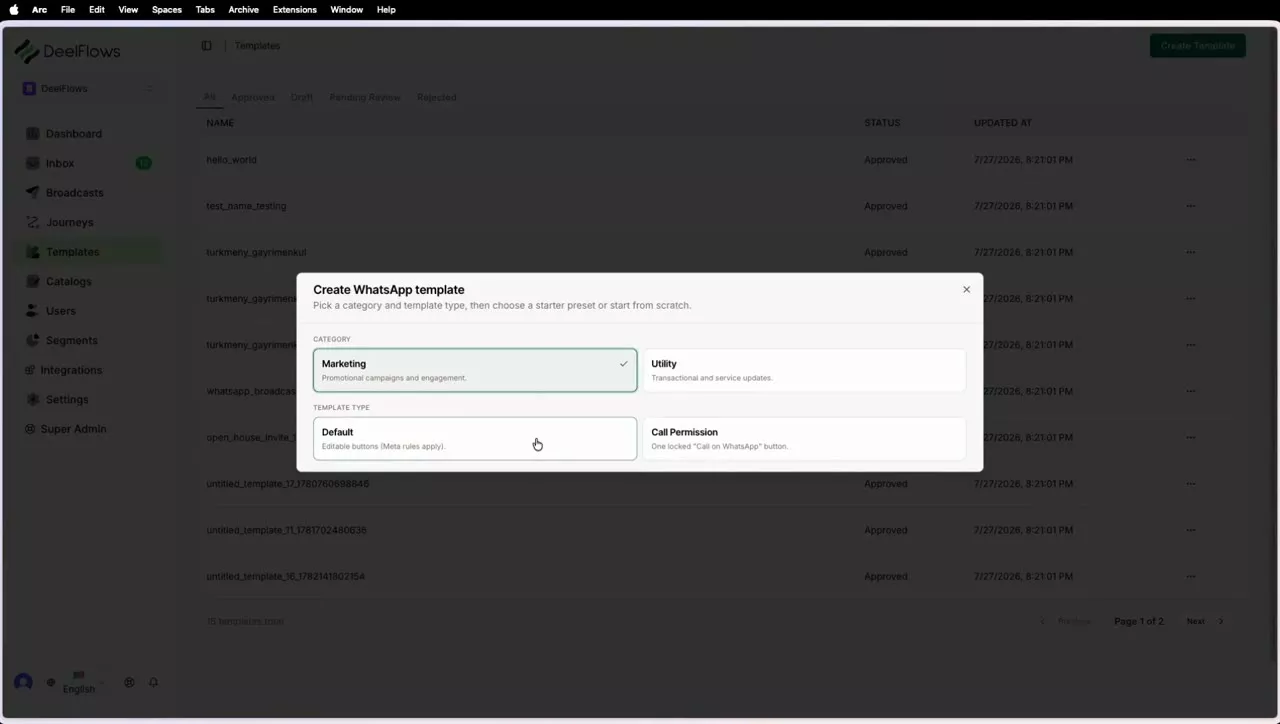
Go to Templates and click Create Template. Choose Marketing or Utility — the wrong category is a common Meta rejection reason.
Give it an internal name Contacts never see (for example abandoned_cart_1h).
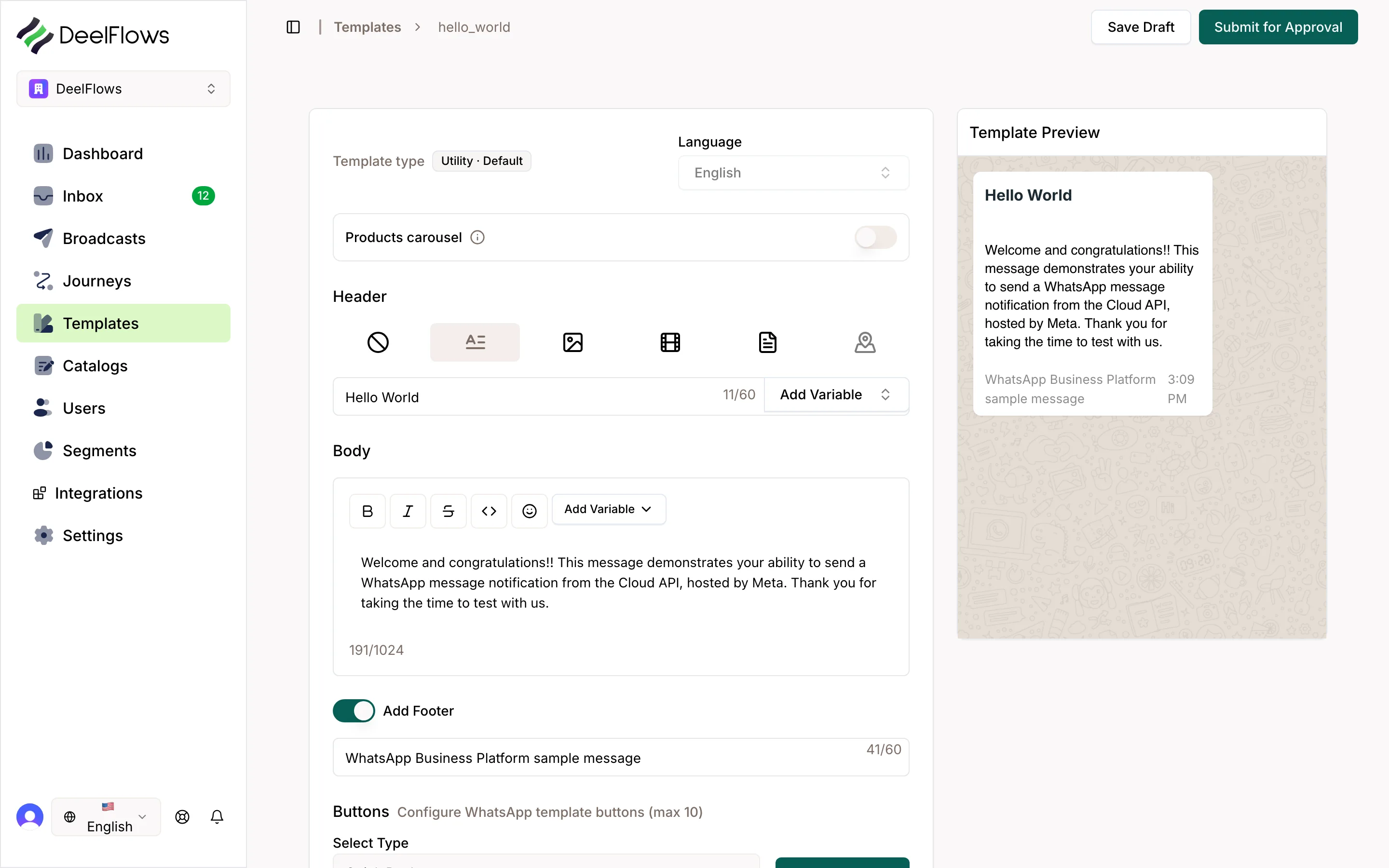
Write the body. Keep Meta policy in mind: clear purpose, no spammy ALL CAPS or urgency bait.
2. Add Variable — three kinds
Click Add Variable. You will see three tabs that match the product UI.
User attributes — Contact fields also called user properties in DeelFlows docs (name, phone, custom fields). Inserted as {{firstName}}. Resolved from that Contact when you send. In Broadcasts and Journeys these usually auto-fill — you do not bind them by hand.
Global shortcodes — Workspace-wide values from Settings → Shortcodes (company name, support link). Inserted as {{companyAddress}}. Same value for every Contact. Also auto-resolved at send.
Events — properties from a triggering event (checkout URL, order id). Inserted as {{event_checkoutUrl}}. These only resolve meaningfully in a Journey with Event Entry, where the WhatsApp node binds each event variable to a path on the trigger event. Broadcasts have no event context, so do not rely on Events variables for Broadcast-only Templates.
3. When to use Events variables
Use Events when the value comes from the action that started the Journey — for example ShopifyCheckoutStarted.checkoutUrl or an order total.
After you insert {{event_…}} in the Template, open the Journey WhatsApp node. DeelFlows defaults that placeholder to Event Field binding. You can point the path at the exact event property, or set a Manual override (a fixed string) if you must.
Event Field binding requires Event Entry on that Journey. Segment-entry Journeys have no event payload — event placeholders will not fill. Prefer User attributes or Global shortcodes for segment-triggered flows.
For Meta review, set an Example value on each variable so reviewers see sample text — that example is not what Contacts receive.
4. Buttons and product Templates
Add up to three buttons: URL, phone, or quick reply. URL buttons can include variables for personalized links.
Products Carousel and Single-Product Card Templates pull from your Catalog. Product cards are a snapshot — if a Product changes later, the Template can show as stale and needs re-sync and Meta re-approval.
5. Submit for Meta approval
Click Submit for Review. Approval is often within a day.
If rejected, read the reason, fix the copy or category, and resubmit. You cannot edit an approved Template in place — create a new version instead.
Only Approved Templates appear for Broadcasts, Journeys, and closed-session Inbox sends.
FAQ & gotchas
What is the difference between User attributes and Global shortcodes?
User attributes (user properties) are per Contact — each person can have a different firstName. Global shortcodes are one value for the whole Workspace — everyone gets the same companyAddress. Both are selected under Add Variable and auto-resolve at send.
Why do Events variables only work in Journeys?
Events placeholders need the trigger event’s data. Only an Event Entry Journey carries that payload into the WhatsApp node, where you bind or override each {{event_…}} path. Broadcasts and segment-entry Journeys do not have that event context.
Can I use the same Template in a Broadcast and a Journey?
Yes, if it only uses User attributes and Global shortcodes. If it contains Events variables, use it on an Event Entry Journey and configure Template Variables on the WhatsApp node.
Can I edit a Template after Meta approves it?
No. Create a new Template (or new version), submit again, then point Broadcasts and Journeys at the new one.
Continue learning
Related articles
Can't find what you're looking for?
Contact Support