
Integrations
Public API and Write Keys
Generate and manage API keys to connect external apps, ingest data, and automate workflows with DeelFlows.
Reviewed by Mahmoud Ilyan · updated
What it is
DeelFlows provides two types of API keys: Public API keys for full read/write access, and Write Keys for secure data ingestion.
Public API keys allow you to manage Contacts, send messages, create Journeys, and access all Workspace data.
Write Keys are restricted to creating Contacts and tracking events, making them safe for client-side or public-facing integrations.
When to use it
- When you need to connect DeelFlows to third-party apps or custom scripts.
- When you want to ingest event data from your website, mobile app, or backend systems.
- When you're building custom integrations with tools like Zapier, Make, or your own API clients.
- When you need to automate Workspace actions programmatically.
Step by step
1. Navigate to API Keys Settings
Go to Settings → API Keys in your DeelFlows Workspace.
You'll see a list of existing keys (if any) and options to create new keys.
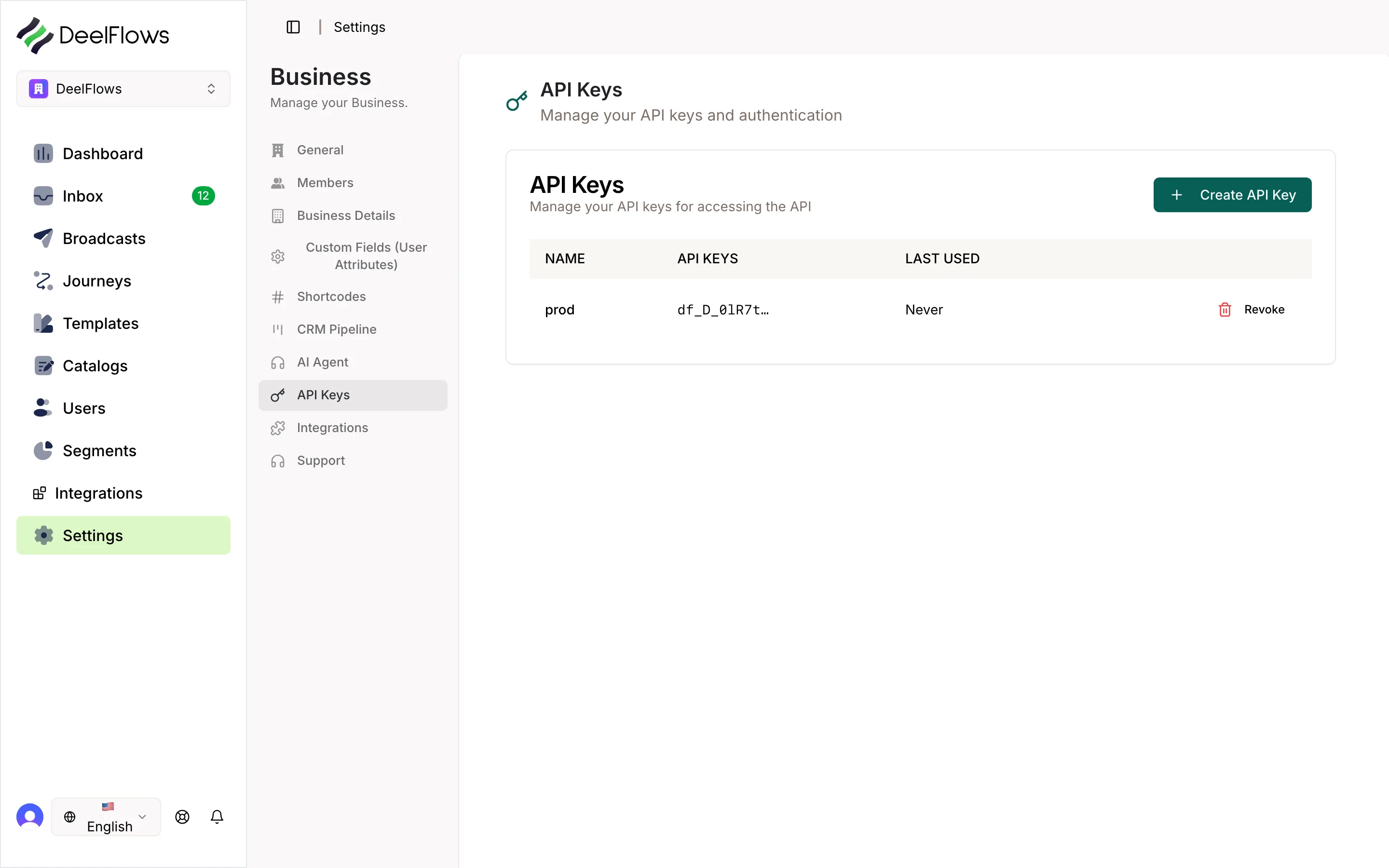
2. Generate a Public API Key
Click Generate Public API Key.
Give your key a descriptive name (e.g., 'Zapier Integration' or 'Backend Service').
The key will be generated and displayed once. Copy it immediately and store it securely.
Public API keys start with the prefix df_ followed by a unique string.
Use this key as a Bearer token in the Authorization header for API requests.
3. Generate a Write Key
Click Generate Write Key if you need a key for data ingestion only.
Write Keys are safer for public-facing integrations like website tracking or mobile SDKs.
These keys cannot read data or perform administrative actions—they can only create Contacts and track events.
Write Keys also start with df_ and are used the same way as Public API keys in the Authorization header.
4. Use Your API Key
Include your API key in the Authorization header of all API requests: Authorization: Bearer df_your_key_here.
Refer to /docs/api-reference for endpoint documentation and code examples.
Test your key with a simple API call (e.g., GET /api/v1/contacts) to confirm it works.
5. Revoke or Rotate Keys
If a key is compromised or no longer needed, revoke it from Settings → API Keys.
Revoked keys stop working immediately and cannot be restored.
To rotate a key, generate a new one, update your integrations, then revoke the old key.
FAQ & gotchas
Can I regenerate a lost API key?
No. API keys are shown only once when generated. If you lose a key, you must generate a new one and update your integrations.
How many API keys can I create?
There's no hard limit, but for security, create only as many keys as you need and name them clearly.
What's the difference between Public API keys and Write Keys?
Public API keys have full Workspace access (read/write). Write Keys are limited to creating Contacts and tracking events, making them safer for public integrations.
Are API keys scoped to a single Workspace?
Yes. Each key is specific to the Workspace where it was created. Use different keys for different Workspaces.
Can I restrict API key permissions further?
Currently, Public API keys have full access and Write Keys have ingestion-only access. Granular permissions are on the roadmap. Contact support for custom needs.
Continue learning
Related articles
Salla Integration
Install DeelFlows from the Salla App Store and connect your store in one click to confirm COD orders and recover pending checkouts over WhatsApp.
→WooCommerce Integration
Connect your WooCommerce store to DeelFlows to sync products, track abandoned carts, and automate customer engagement through WhatsApp.
→Shopify Integration
Connect your Shopify store to DeelFlows to sync products, track checkout and order events, and build automated customer Journeys.
→Meta Lead Ads Integration
Connect Facebook and Instagram Lead Ads to DeelFlows to automatically capture leads and start WhatsApp conversations.
→Can't find what you're looking for?
Contact Support