
Integrations
WooCommerce Integration
Connect your WooCommerce store to DeelFlows to sync products, track abandoned carts, and automate customer engagement through WhatsApp.
Reviewed by Mahmoud Ilyan · updated
What it is
The WooCommerce integration syncs your product catalog automatically and sends real-time cart and order events to DeelFlows.
Install the official DeelFlows plugin to enable abandoned cart recovery, order notifications, and product catalog management.
All product data, pricing, and inventory updates flow into DeelFlows as they change in your store.
When to use it
- When you want to send abandoned cart reminders via WhatsApp to recover lost sales.
- When you need to notify Contacts about order confirmations, shipping updates, or delivery status.
- When you want to build Journeys triggered by purchase behavior or cart activity.
- When you want to recommend products to Contacts based on their browsing or purchase history.
Step by step
1. Install the DeelFlows Plugin
Download the official DeelFlows for WooCommerce plugin from your Workspace settings.
Upload and activate the plugin in your WordPress admin panel under Plugins → Add New → Upload Plugin.
The plugin automatically creates a secure connection between WooCommerce and your DeelFlows Workspace.
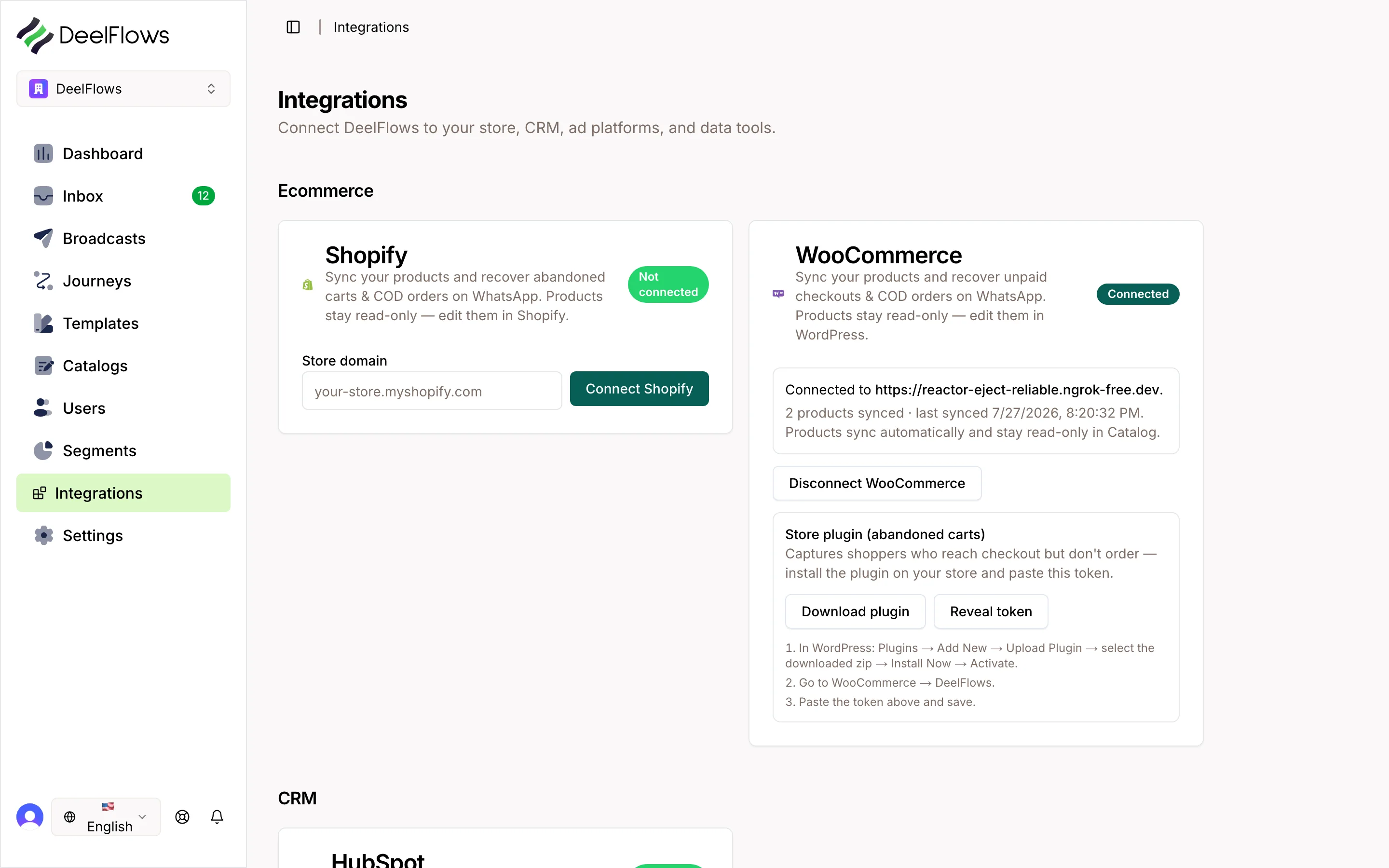
2. Configure Catalog Sync
Navigate to Settings → Integrations in DeelFlows and select WooCommerce.
Enable product catalog sync to automatically import all products, categories, and variants.
Choose which product data to sync: images, pricing, inventory, descriptions, and custom fields.
The initial sync may take a few minutes depending on your catalog size.
3. Enable Abandoned Cart Tracking
In the plugin settings, enable abandoned cart event tracking.
Set your cart abandonment threshold (default is 15 minutes of inactivity).
Configure which cart states trigger events: pending checkout, payment incomplete, or custom conditions.
DeelFlows will automatically create Contact records for shoppers who add items to cart.
4. Set Up Order Event Triggers
Enable order event tracking to receive real-time notifications when orders are placed, paid, shipped, or completed.
These events become available as Journey triggers and can be used in Segments.
Map WooCommerce order statuses to DeelFlows user properties for advanced automation.
5. Test the Integration
Place a test order on your WooCommerce store and verify the event appears in DeelFlows under Contacts → Activity.
Add items to cart and wait for the abandonment threshold to confirm abandoned cart events are firing.
Check that product catalog data is visible in Settings → Integrations → WooCommerce.
FAQ & gotchas
How often does the product catalog sync?
Product catalog syncs happen in real-time when products are created, updated, or deleted in WooCommerce. You can also trigger a manual full sync from the integration settings.
Can I customize which cart events trigger automation?
Yes. In the plugin settings, you can define custom cart abandonment rules based on cart value, time threshold, product categories, or customer segments.
Does the integration work with WooCommerce Subscriptions?
Yes. Subscription renewals, cancellations, and payment failures are tracked as separate events you can use in Journeys.
What happens if a Contact opts out of WhatsApp?
Contacts who opt out will not receive any automated messages, but their order and cart events will still be tracked for analytics purposes.
Can I use this integration with multiple WooCommerce stores?
Each WooCommerce store requires its own DeelFlows Workspace. Contact support if you need multi-store management in a single Workspace.
Continue learning
Related articles
Meta Lead Ads Integration
Connect Facebook and Instagram Lead Ads to DeelFlows to automatically capture leads and start WhatsApp conversations.
→HubSpot Integration
Connect HubSpot to DeelFlows to sync contact lists, segments, and engagement data between platforms.
→Zapier and Make Integration
Connect DeelFlows to thousands of apps using Zapier or Make to automate workflows and data sync.
→Public API and Write Keys
Generate and manage API keys to connect external apps, ingest data, and automate workflows with DeelFlows.
→Can't find what you're looking for?
Contact Support