
Quick Start
Connect Your WhatsApp Business Account
Link your WhatsApp Business Account to DeelFlows in under 5 minutes.
Reviewed by Mahmoud Ilyan · updated
What it is
Connecting WhatsApp gives DeelFlows permission to send and receive messages on behalf of your business. You'll link your WhatsApp Business Account using Meta's official connection flow.
Once connected, DeelFlows can send Broadcasts, run Journeys, receive replies, and track conversations. All messages appear in your Contacts' WhatsApp app with your business name and profile photo.
This is a one-time setup. After connecting, your Workspace stays linked unless you manually disconnect.
When to use it
- You're setting up DeelFlows for the first time
- You need to switch to a different WhatsApp Business Account
- You're reconnecting after a disconnection or permission change
- You're adding a new Workspace that needs its own WhatsApp number
Step by step
1. Go to WhatsApp integration settings
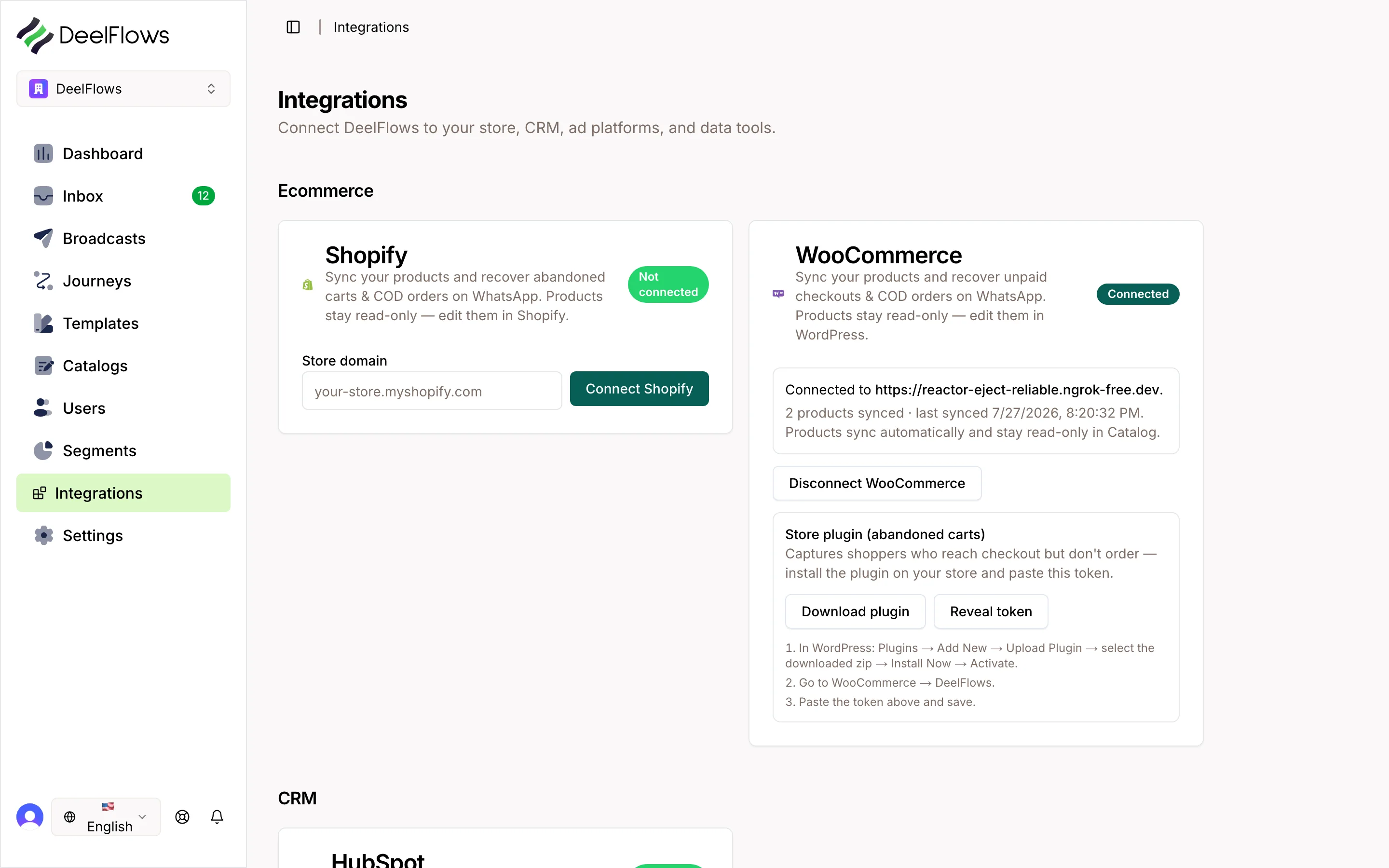
Log in to DeelFlows and open your Workspace. Go to Settings → Integrations.
Find the WhatsApp Business section. Click Connect WhatsApp Business Account.
2. Log in to Meta
A Meta window will open. Log in with the Meta account that manages your WhatsApp Business Account.
If you don't have a WhatsApp Business Account yet, you can create one during this step.
Make sure you're logged in as an Admin of the Meta Business Manager that owns the account.
3. Select your WhatsApp phone number
Meta will show you a list of phone numbers linked to your Business Manager.
Choose the phone number you want to use with DeelFlows. This will be your sender number.
If you don't see your number, go to Meta Business Suite first and verify your phone number is registered as a WhatsApp Business Account.
4. Grant permissions
Meta will ask you to grant DeelFlows permission to send and receive messages.
Click Allow or Continue. DeelFlows needs these permissions to work.
You'll be redirected back to DeelFlows once the connection is complete.
5. Verify connection status
You should see a green Connected status next to your WhatsApp Business Account.
Your phone number and business name will appear in the integration settings.
If you see a red Disconnected status, click Reconnect and go through the steps again.
FAQ & gotchas
What if I don't have a WhatsApp Business Account yet?
You can create one during the connection flow. Meta will guide you through registering a phone number and setting up your business profile. You'll need a phone number that isn't already linked to a personal WhatsApp account.
Can I use the same WhatsApp number in multiple Workspaces?
No. Each WhatsApp Business Account can only be connected to one Workspace at a time. If you need multiple Workspaces, you'll need separate phone numbers for each one.
Why does it say I don't have permission?
You need Admin access to the Meta Business Manager that owns the WhatsApp Business Account. Ask your Business Manager admin to grant you Admin or Developer permissions, then try connecting again.
Can I disconnect and reconnect later?
Yes. Go to Settings → Integrations and click Disconnect. You can reconnect anytime by following the same steps. Your Contacts and message history will stay in DeelFlows.
Continue learning
Related articles
Import Contacts from CSV or Excel
Upload your customer list to DeelFlows so you can start sending WhatsApp messages.
→Dashboard Overview
Understand the key metrics and charts on your DeelFlows dashboard.
→DeelFlows Glossary
Common terms and concepts used throughout DeelFlows.
→Can't find what you're looking for?
Contact Support