
Quick Start
Invite Team Members
Add Operators to your Workspace so your team can manage Contacts and campaigns together.
Reviewed by Mahmoud Ilyan · updated
What it is
Operators are team members who have access to your Workspace. They can view Contacts, send messages, create Broadcasts, build Journeys, and manage settings based on their role.
DeelFlows has three roles: Admin (full access), Editor (can create and send campaigns), and Viewer (read-only access). You control who can do what in your Workspace.
All Operators see the same data and share the same Inbox. When a Contact replies, any Operator can respond. This makes team collaboration easy.
When to use it
- You want marketing team members to create and send Broadcasts
- You need support agents to handle customer replies in the Inbox
- You want your manager to view reports without editing campaigns
- You're delegating Template creation or Journey building to other team members
- You need multiple people to manage Contacts and Segments
Step by step
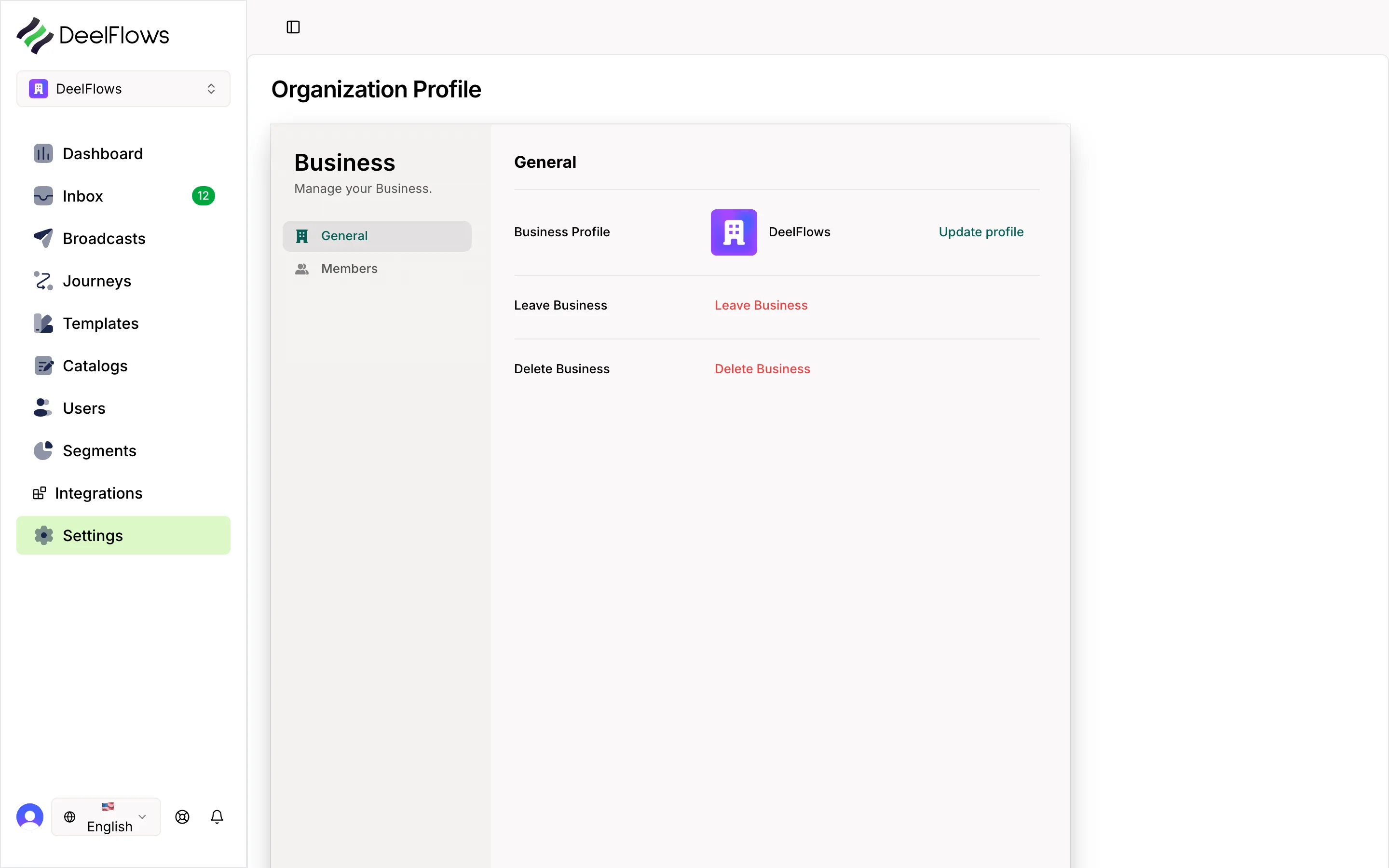
1. Open team settings
Go to Settings → Team in your Workspace.
You'll see a list of current Operators and a button to invite new ones.
Only Admins can invite new Operators. If you don't see the invite button, ask your Workspace admin.
2. Enter email addresses
Click Invite Team Member. Enter the email address of the person you want to invite.
You can add multiple email addresses at once by separating them with commas.
Make sure you use their work email so they get the invitation.
3. Choose a role
Select a role for each Operator. Admin gives full access including billing and settings.
Editor lets them create Broadcasts, Journeys, Templates, and Segments, but not change Workspace settings.
Viewer is read-only. They can see Contacts, messages, and reports, but can't send anything or make changes.
4. Send invitations
Click Send Invitations. DeelFlows will email each person with a link to join your Workspace.
The invitation link expires after 7 days. If someone doesn't accept in time, you can resend it from Settings → Team.
5. Manage roles and access
To change someone's role, go to Settings → Team and click the role dropdown next to their name.
To remove someone, click the X button next to their name. They'll lose access immediately.
You can see who's currently logged in and active in your Workspace from the Team page.
FAQ & gotchas
How many Operators can I add?
It depends on your plan. The Starter plan includes 3 Operators. The Growth plan includes 10. The Enterprise plan has no limit. You can upgrade anytime from Settings → Billing.
Can I limit what Editors can do?
Not yet. Editors have full access to Contacts, Broadcasts, Journeys, Templates, and Segments. If you need finer permissions, contact support about custom roles for Enterprise plans.
What happens if I remove an Operator?
They lose access immediately. Any Broadcasts, Journeys, or Templates they created stay in your Workspace. Their message history in the Inbox also stays visible to other Operators.
Can an Operator belong to multiple Workspaces?
Yes. One person can be an Operator in multiple Workspaces. They'll see a Workspace switcher in the top navigation to toggle between them.
Continue learning
Related articles
What is DeelFlows?
Learn how DeelFlows helps you automate WhatsApp marketing and recover abandoned carts.
→Dashboard Overview
Understand the key metrics and charts on your DeelFlows dashboard.
→DeelFlows Glossary
Common terms and concepts used throughout DeelFlows.
→Can't find what you're looking for?
Contact Support