
Product
Inbox - Manage Conversations
View and reply to WhatsApp messages from Contacts. Track lead scores, assign to Operators, and move Deals through your Pipeline.
Reviewed by Mahmoud Ilyan · updated
What it is
The Inbox is your central hub for all WhatsApp Conversations with Contacts.
Each Conversation includes a session window. While it is open you can send free-form messages without a Template.
The Inbox shows AI-generated lead scores and signals to prioritize important messages.
You can assign Conversations to Operators for better team collaboration.
The CRM Pipeline tab lets you manage Deals and track sales stages.
When to use it
- When a Contact sends you a message on WhatsApp
- When you need to reply to customer inquiries
- When you want to assign Conversations to team members
- When you need to move a Deal to the next stage
- When you want to use quick replies for common questions
Step by step
1. Open the Inbox
Click Inbox in the main navigation.
You will see a list of all active Conversations.
The most recent messages appear at the top.
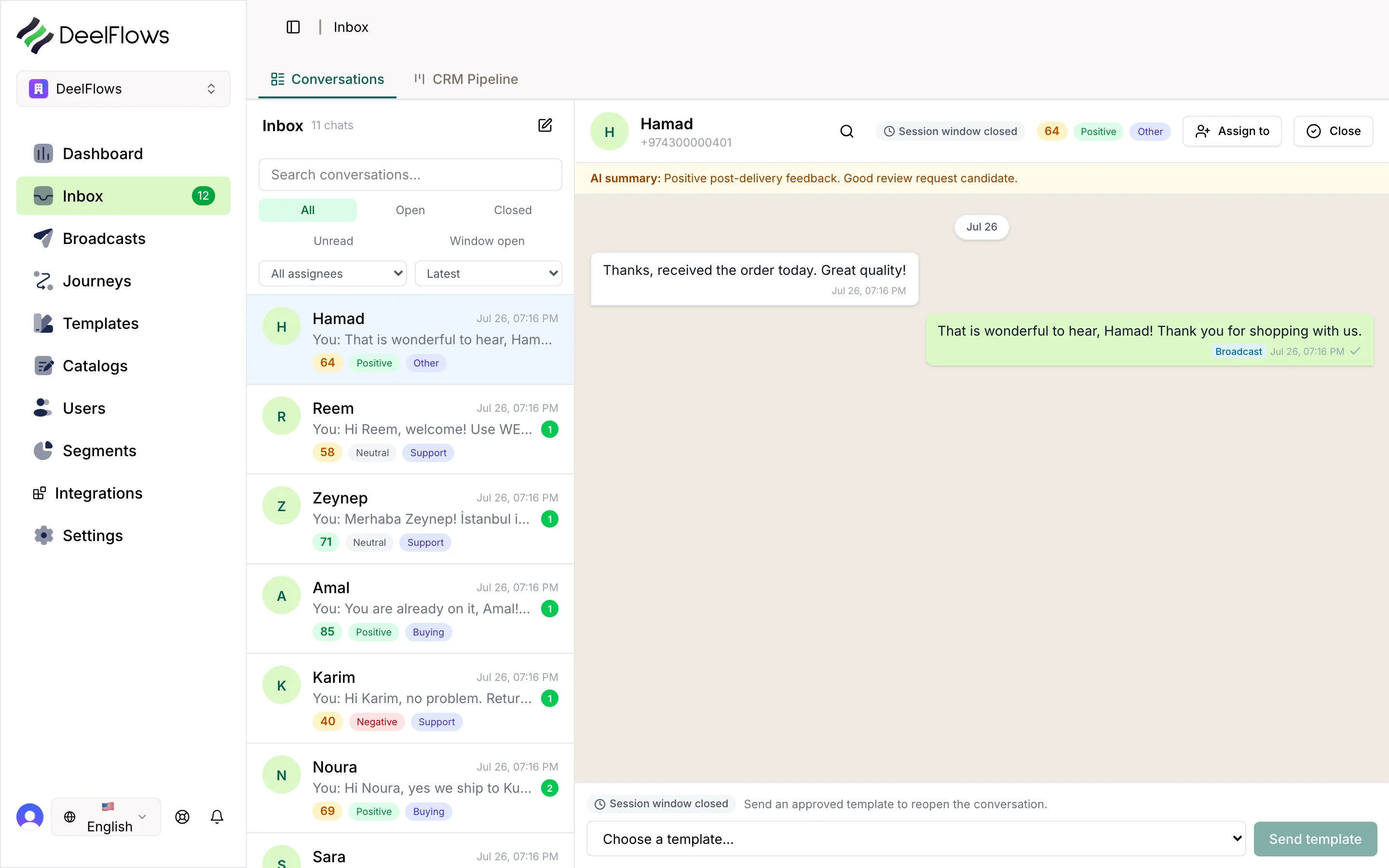
2. View a Conversation
Click any Conversation in the list.
The full message history appears on the right.
Check the session window timer at the top. This shows how long you can still reply free-form, without a Template.
Look for the AI lead score badge. Higher scores mean more engaged Contacts.
3. Reply to a message
Type your reply in the message box at the bottom.
Click Send or press Enter.
Use the quick reply button to insert saved responses.
You can attach images, videos, or documents using the attachment button.
4. Assign to an Operator
Click the assignment dropdown at the top of the Conversation.
Select an Operator from your team.
They will receive a notification and see the Conversation in their queue.
5. Manage Deals in Pipeline
Click the CRM Pipeline tab in the Inbox.
You will see a kanban board with your Deal stages.
Drag and drop Deals between stages as they progress.
Configure stages at Settings → Pipeline.
FAQ & gotchas
What is a session window?
A session window is a 24-hour period after a Contact messages you. During this window, you can reply free-form without a Template. From 1 October 2026, Meta charges these replies at your market's utility rate after 1,000 free service messages per phone number each month. After the window expires, you must use approved Templates to message them.
What is the AI lead score?
The AI lead score analyzes message content and Contact behavior to predict their likelihood to convert. Higher scores help you prioritize which Conversations to focus on first.
Can I filter Conversations?
Yes. Use the filter buttons above the Conversation list to show only unread, assigned, or high-priority Conversations.
How do I set up the Pipeline?
Go to Settings → Pipeline to create custom stages for your sales process. You can add, remove, or reorder stages to match your workflow.
Continue learning
Related articles
Segments - Group Your Contacts
Create filtered groups of Contacts based on user properties, behavior, or Opt-in status. Use Segments to target specific audiences.
→Broadcasts - Send Bulk Messages
Send a one-time WhatsApp message to a Segment of Contacts. Use the 4-step wizard to target, design, schedule, and review your campaign.
→Journeys — automated WhatsApp flows
Build node-based automations: Entry, Delay, Wait For, Split, WhatsApp, and Exit — including Abandoned Cart and how Events variables bind on the WhatsApp node.
→Catalog and Product Pages
Create a catalog of products or services with public pages. Sync from your store or add products manually. Share product links in messages.
→Can't find what you're looking for?
Contact Support