
Product
Segments - Group Your Contacts
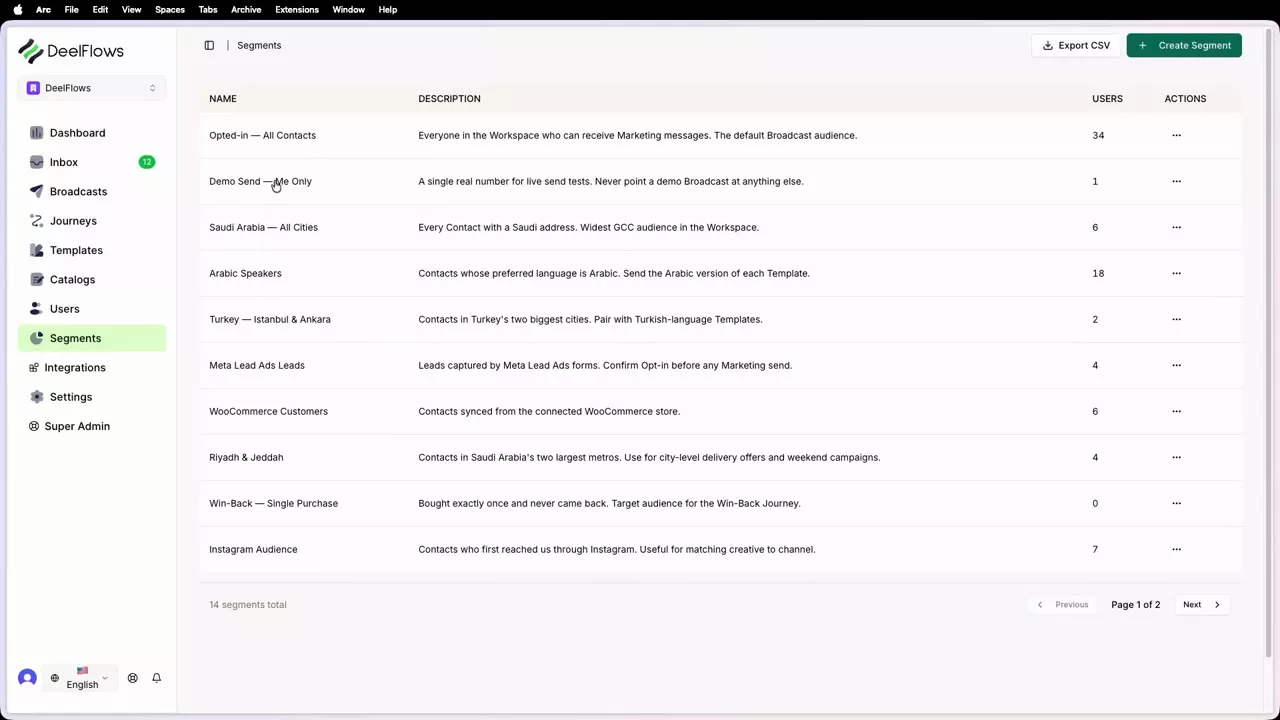
Create filtered groups of Contacts based on user properties, behavior, or Opt-in status. Use Segments to target specific audiences.
Reviewed by Mahmoud Ilyan · updated
 1:01
1:01Video needed
Watch video guide →
What it is
Segments are groups of Contacts that match specific criteria.
You can create dynamic Segments with live rules that update automatically.
You can also create fixed Segments by manually selecting or uploading Contacts.
Segments are used when targeting Broadcasts or building Journeys.
The Segment builder lets you combine multiple conditions with AND/OR logic.
When to use it
- When you want to send Broadcasts to specific groups
- When you need to target Contacts based on user properties
- When you want to separate new customers from returning ones
- When you need to exclude certain Contacts from a campaign
- When you want to analyze a subset of your Contact list
Step by step
1. Create a new Segment
Go to Contacts → Segments.
Click Create Segment.
Choose between Dynamic (rule-based) or Fixed (manual).
Give your Segment a descriptive name.
2. Build a dynamic Segment with rules
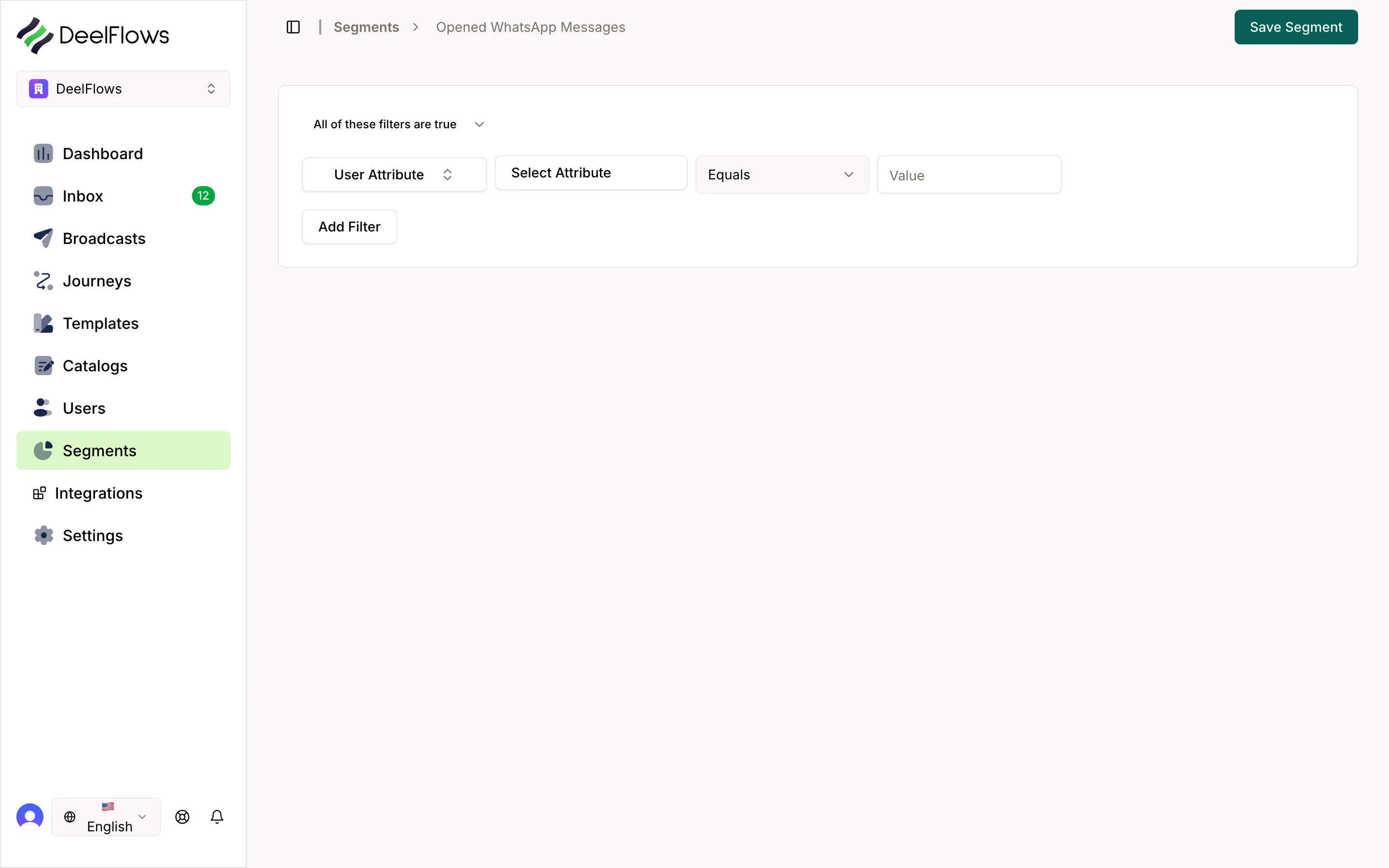
Select Dynamic Segment.
Click Add Rule.
Choose a user property, Opt-in status, or behavior condition.
Select an operator like 'equals', 'contains', or 'greater than'.
Enter the value to match.
Add more rules if needed and choose AND or OR logic.
3. Create a fixed Segment
Select Fixed Segment.
Choose Upload CSV to import a list of phone numbers.
Or choose Select Manually to pick Contacts one by one.
Review the Contact count.
Click Save.
4. Preview your Segment
After creating rules, click Preview.
You will see a list of Contacts that match.
Check the count to ensure it matches your expectations.
Adjust rules if needed.
5. Use your Segment
When creating a Broadcast, select your Segment in the Target step.
When building a Journey, use the Segment filter in entry conditions.
Your dynamic Segments will update automatically as Contact data changes.
FAQ & gotchas
What is the difference between dynamic and fixed Segments?
Dynamic Segments update automatically based on rules. If a Contact matches the rules, they are added. If they stop matching, they are removed. Fixed Segments never change unless you manually edit them.
Can I combine multiple conditions?
Yes. You can add multiple rules and use AND or OR logic. For example, 'Opted in AND Purchase Count > 5 OR City equals Dubai'.
How often do dynamic Segments update?
Dynamic Segments update in real time. As soon as a Contact's data changes, they are added to or removed from matching Segments immediately.
Can I nest Segments?
You cannot directly nest Segments, but you can recreate the same conditions by adding all the rules from one Segment into another.
Continue learning
Related articles
Inbox - Manage Conversations
View and reply to WhatsApp messages from Contacts. Track lead scores, assign to Operators, and move Deals through your Pipeline.
→Journeys — automated WhatsApp flows
Build node-based automations: Entry, Delay, Wait For, Split, WhatsApp, and Exit — including Abandoned Cart and how Events variables bind on the WhatsApp node.
→Catalog and Product Pages
Create a catalog of products or services with public pages. Sync from your store or add products manually. Share product links in messages.
→Pipeline and Deals
Manage sales opportunities with a visual kanban board. Create Deals from Conversations, move them through custom stages, and track revenue.
→Can't find what you're looking for?
Contact Support