
Product
Broadcasts - Send Bulk Messages
Send a one-time WhatsApp message to a Segment of Contacts. Use the 4-step wizard to target, design, schedule, and review your campaign.
Reviewed by Mahmoud Ilyan · updated
What it is
Broadcasts let you send WhatsApp messages to many Contacts at once.
You can only send Broadcasts to Contacts who have opted in.
The Broadcast wizard has 4 steps: Target, Design, Schedule, and Review.
You must use an approved Template for the message content.
You can schedule Broadcasts to send immediately or at a future time.
When to use it
- When you want to announce a promotion or sale
- When you need to share important updates with customers
- When you want to send a newsletter or content
- When you need to re-engage inactive Contacts
- When you want to send a seasonal greeting or event invitation
Step by step
1. Start a new Broadcast
Go to Campaigns → Broadcasts.
Click Create Broadcast.
The 4-step wizard will open.
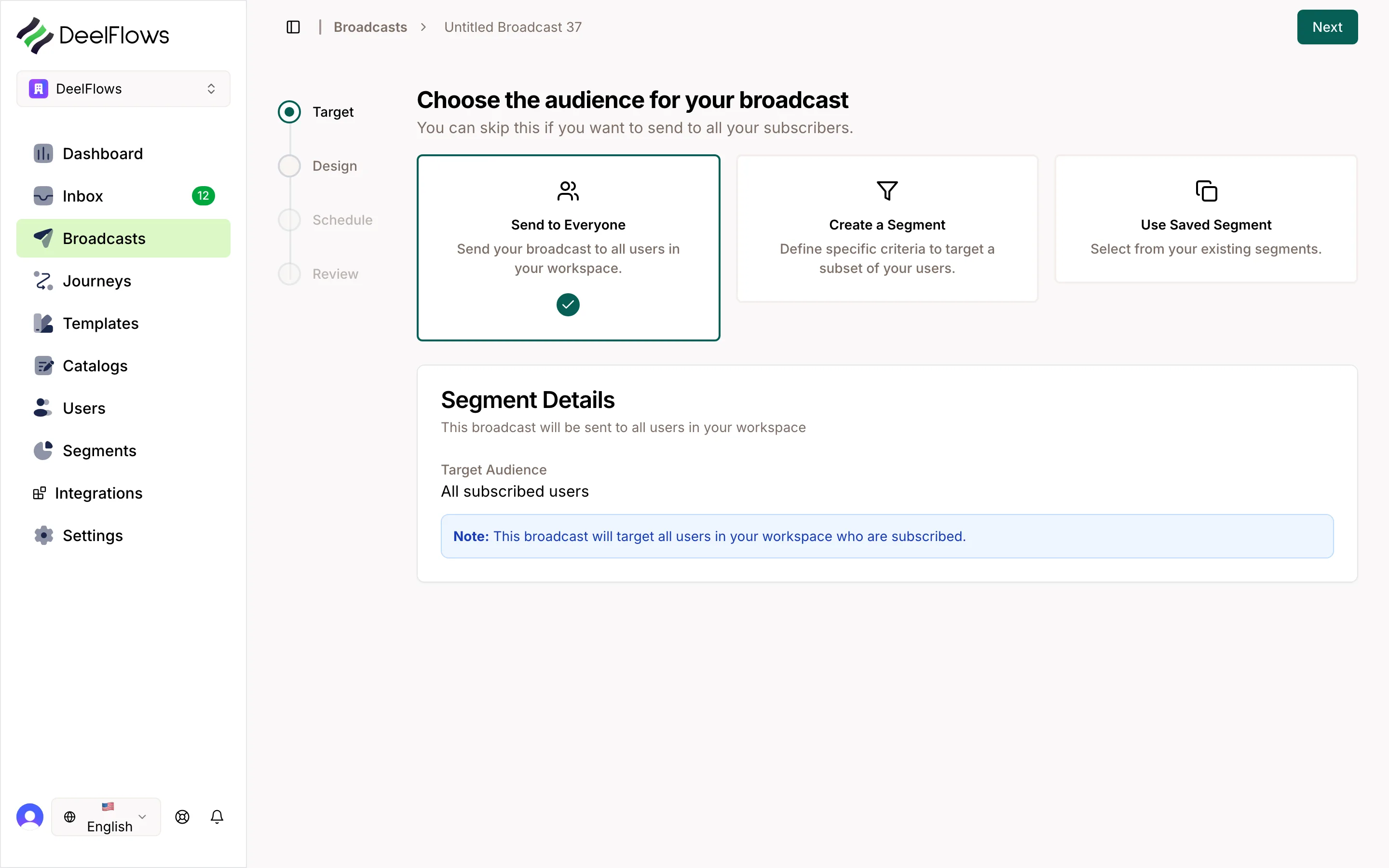
2. Step 1: Target your audience
Select a Segment of Contacts to target.
You will see the count of opted-in Contacts in that Segment.
Only opted-in Contacts will receive the message.
Click Next.
3. Step 2: Design your message
Choose an approved Template from the list.
If the Template has variables, fill them in with your content or Contact properties.
Preview the message to see how it will look.
Click Next.
4. Step 3: Schedule delivery
Choose Send Now to send immediately.
Or choose Schedule for Later and pick a date and time.
Select your Workspace timezone.
Click Next.
5. Step 4: Review and launch
Review your target Segment, message content, and schedule.
Check the estimated Contact count.
Click Launch Broadcast.
You will see a confirmation and can track progress in the Broadcasts list.
FAQ & gotchas
Why can I only send to opted-in Contacts?
WhatsApp requires explicit permission for marketing messages. DeelFlows enforces this by only allowing Broadcasts to Contacts who have opted in.
What if my Template is not approved?
You cannot use unapproved Templates in Broadcasts. Submit your Template for approval through Settings → Templates, then wait for Meta to review it. This usually takes 24-48 hours.
Can I cancel a scheduled Broadcast?
Yes. Go to Campaigns → Broadcasts, find the scheduled Broadcast, and click Cancel. You can only cancel Broadcasts that have not started sending yet.
How do I track Broadcast performance?
Click on any Broadcast in the list to see delivery stats: sent, delivered, read, and clicked. You can also see which Contacts replied.
Continue learning
Related articles
Inbox - Manage Conversations
View and reply to WhatsApp messages from Contacts. Track lead scores, assign to Operators, and move Deals through your Pipeline.
→Contacts and User Properties
Store information about people who message your business. Add custom user properties to track details that matter to you.
→Catalog and Product Pages
Create a catalog of products or services with public pages. Sync from your store or add products manually. Share product links in messages.
→Pipeline and Deals
Manage sales opportunities with a visual kanban board. Create Deals from Conversations, move them through custom stages, and track revenue.
→Can't find what you're looking for?
Contact Support