
Product
Pipeline and Deals
Manage sales opportunities with a visual kanban board. Create Deals from Conversations, move them through custom stages, and track revenue.
Reviewed by Mahmoud Ilyan · updated
What it is
The Pipeline is a kanban board for managing sales Deals.
Each Deal represents a potential sale or opportunity with a Contact.
You create custom stages to match your sales process, like 'Qualified', 'Proposal Sent', and 'Closed Won'.
Deals are linked to Conversations in the Inbox.
You can track Deal value, close date, and notes.
When to use it
- When you want to track sales opportunities
- When you need to visualize your sales funnel
- When you want to assign Deals to Operators
- When you need to forecast revenue by stage
- When you want to track Deal history and notes
Step by step
1. Set up your Pipeline stages
Go to Settings → Pipeline.
Click Add Stage.
Enter a stage name, like 'New Lead' or 'Negotiation'.
Reorder stages by dragging them.
Click Save.
2. Create a Deal from a Conversation
Open a Conversation in the Inbox.
Click Create Deal at the top right.
Enter the Deal name and estimated value.
Select the starting stage.
Click Save.
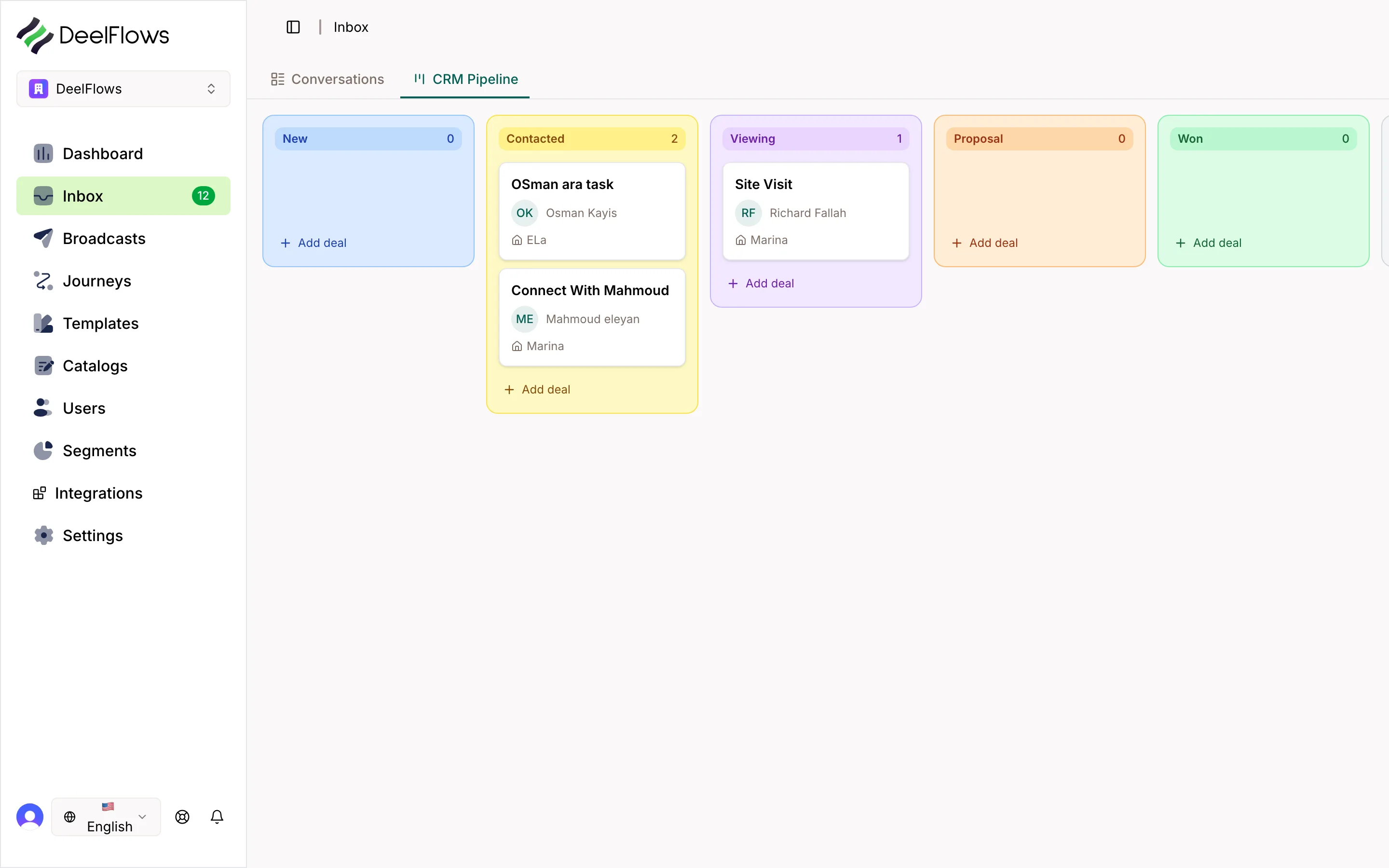
3. View the Pipeline board
In the Inbox, click the CRM Pipeline tab.
You will see a kanban board with columns for each stage.
Each card represents a Deal.
The card shows the Contact name, Deal value, and assigned Operator.
4. Move Deals through stages
Drag a Deal card from one column to another.
The Deal stage updates automatically.
Add notes or update the value by clicking the card.
5. Track Deal history
Click on any Deal card.
You will see a timeline of stage changes, notes, and linked Conversations.
Use the notes section to record important details.
FAQ & gotchas
Can I have multiple Pipelines?
Currently, each Workspace has one Pipeline. You can create custom stages to handle different sales processes within that Pipeline.
What happens to a Deal when I close it?
Closed Deals (won or lost) remain in the Pipeline but are hidden by default. Use the filter dropdown to show closed Deals.
Can I link multiple Conversations to one Deal?
Yes. You can link additional Conversations to a Deal by opening the Deal card and clicking Link Conversation.
How do I report on Pipeline performance?
Go to Reports → Pipeline to see conversion rates by stage, average time in stage, and total Deal value by Operator.
Continue learning
Related articles
Inbox - Manage Conversations
View and reply to WhatsApp messages from Contacts. Track lead scores, assign to Operators, and move Deals through your Pipeline.
→Contacts and User Properties
Store information about people who message your business. Add custom user properties to track details that matter to you.
→Segments - Group Your Contacts
Create filtered groups of Contacts based on user properties, behavior, or Opt-in status. Use Segments to target specific audiences.
→Broadcasts - Send Bulk Messages
Send a one-time WhatsApp message to a Segment of Contacts. Use the 4-step wizard to target, design, schedule, and review your campaign.
→Can't find what you're looking for?
Contact Support